

GitHub Integration Setup
Overview
GitHub integration lets ProdE read your GitHub repositories and build a knowledge layer over the codebases you choose.
ProdE offers two ways to connect GitHub, and they work differently:
- GitHub App (recommended): You are redirected to GitHub, where you pick the account or organization and choose which repositories ProdE can see. Access is limited to exactly what you select on GitHub.
- Personal Access Token (PAT): You paste a token and ProdE does the discovery for you. It automatically finds every account and organization the token can reach, along with their repositories. There is no repository picker on GitHub for this method.
Use the GitHub App for most cases. Use a PAT for GitHub Enterprise or when installing an app is not an option.
Prerequisites
- GitHub account with access to the repositories you want to connect.
- For the GitHub App method:
- To install ProdE across an organization, you must be an organization owner, or request approval from one.
- To install ProdE on specific repositories, you must have admin access to those repositories.
- For the PAT method: a classic token that already has access to the accounts and organizations you want, with the
repoandread:orgscopes.
Step 1: Start the connection
- Log into ProdE.
- In the sidebar, open Admin, then Integrations. The Admin section is only visible to team owners.
- On the Integrations page, select the GitHub provider and click Connect.
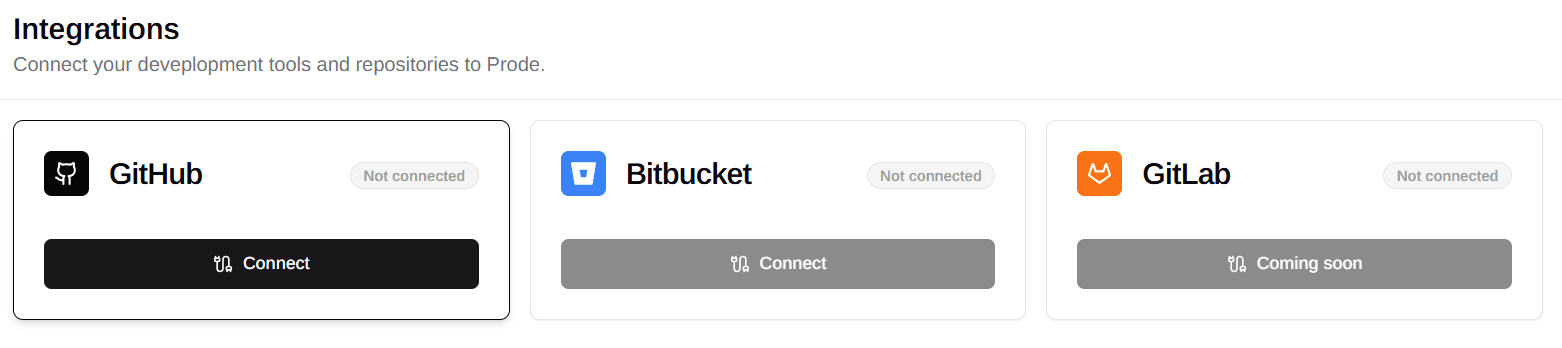
Step 2: Choose an authentication method
Option A: GitHub App (recommended)
-
Clicking Connect redirects you to GitHub to install the ProdE GitHub App.
-
Choose where to install it: pick your personal account or an organization. If you are not an owner of the organization, GitHub lets you request approval from an owner.
-
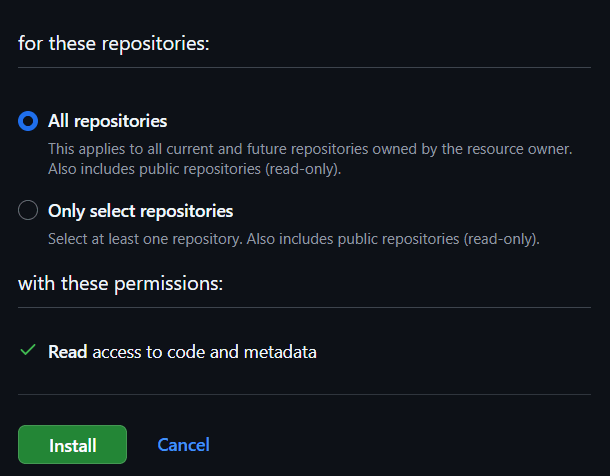
Choose which repositories ProdE can access:
- All repositories: every current and future repository owned by that account or organization.
- Only select repositories: just the repositories you pick.
ProdE only requests read access to code and metadata.
-
Click Install. GitHub redirects you back to ProdE, the installation is registered, and ProdE discovers the repositories you granted.
To connect more than one organization, install the ProdE GitHub App on each additional organization. Each organization is added as a separate installation that you can manage and disconnect independently.
Option B: Personal Access Token (PAT)
Use this method for GitHub Enterprise or when installing the GitHub App is not possible.
- Generate a classic PAT in your GitHub account under Settings > Developer settings > Personal access tokens > Tokens (classic).
- Add these scopes:
repo: read access to private repository contents (ProdE only reads, it never writes).read:org: read your organization and team membership so ProdE can discover organization repositories.
- Paste the token into ProdE's connection form.
- ProdE validates the token, then discovers everything it can reach automatically: your personal account, every organization you belong to, and the repositories under each. You do not select organizations or repositories on GitHub for this method.
Over time, if the token gains access to new organizations, ProdE picks them up automatically during its scheduled sync, and you can trigger a manual refresh at any point.
GitHub's classic token system does not offer a read-only scope for private repositories. The repo scope is the minimum required to read private repository contents. ProdE only performs read operations and will never modify your repositories.
Step 3: Select the repositories to index
Connecting a provider makes its repositories available in ProdE, but it does not index them yet. What "available" means depends on the method you used:
- With the GitHub App, the available repositories are the ones you granted during installation.
- With a PAT, the available repositories are everything across the accounts and organizations the token can reach.
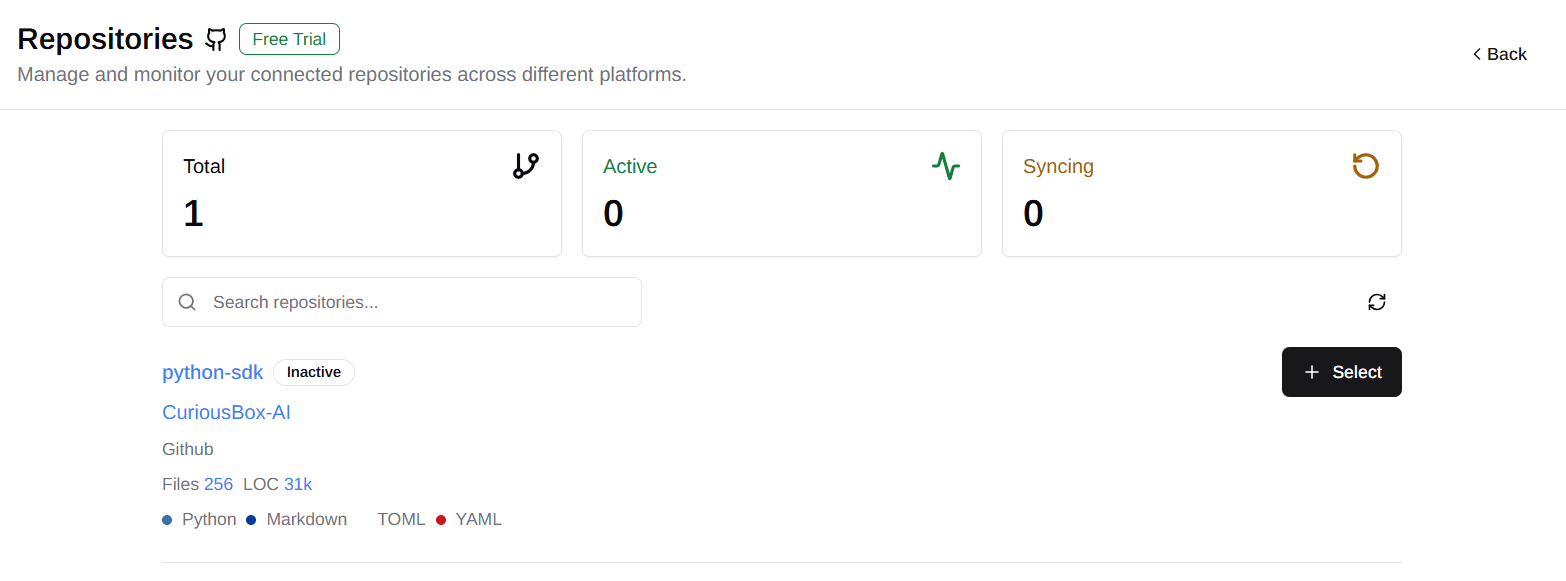
Open Select Repositories in the sidebar, choose the repositories you want in your knowledge layer, and start indexing. See Connect Your Repositories for the details of this step.
Managing GitHub organizations
To review or manage the organizations and accounts connected to ProdE after setup, go to Admin > Integrations > GitHub. The GitHub setup page lists each connected organization or account, along with its repository count and status.
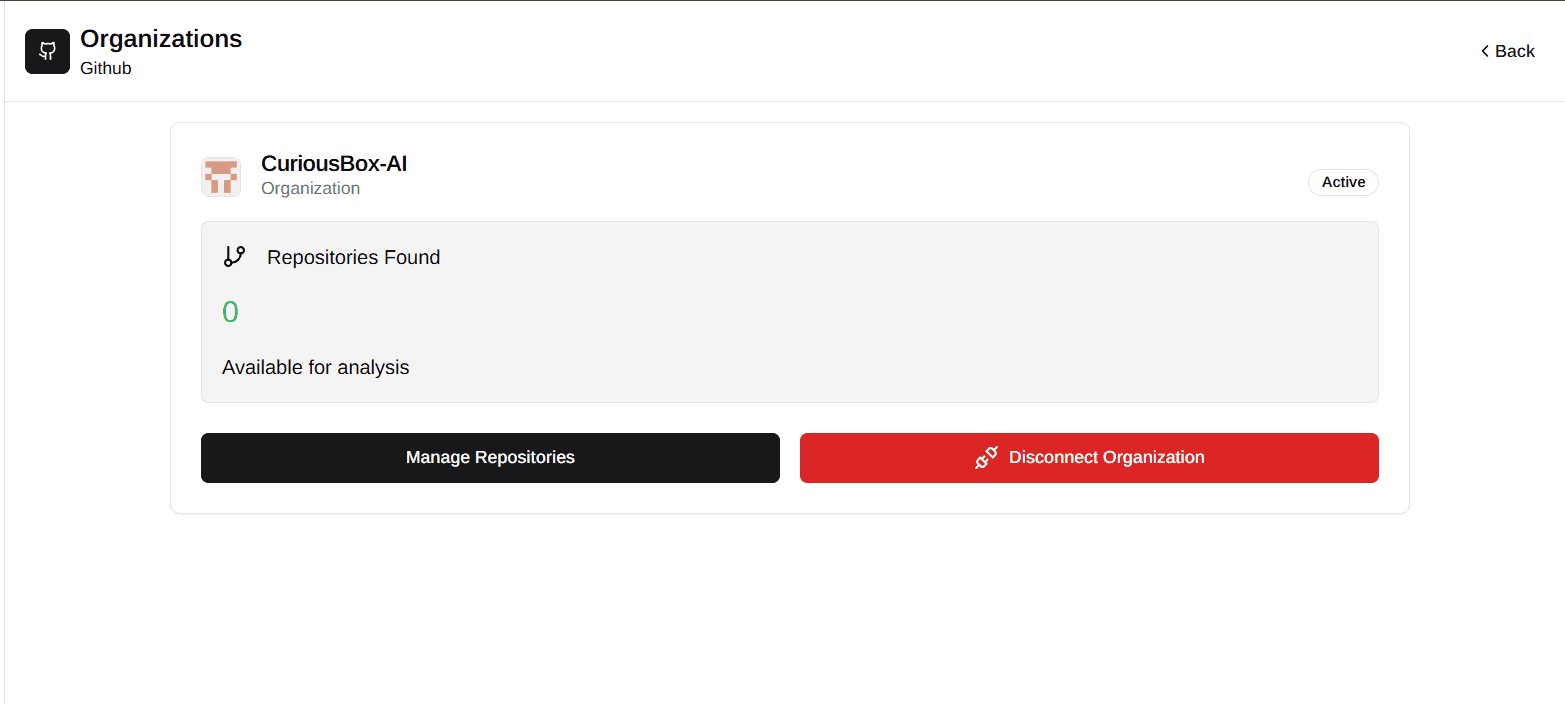
How you add more organizations depends on your connection method:
- GitHub App: install the app on each additional organization to add it. Each one is a separate installation.
- PAT: new organizations the token can access are discovered automatically. Trigger a refresh if you want them to appear right away.
Security
Read-only access
- No write permissions: ProdE only requests read access to your repositories.
- Least privilege: the GitHub App is limited to reading code and metadata, and its access tokens are short-lived and generated on demand rather than stored. A PAT is encrypted before it is stored.
- Scoped access: ProdE can only see what you granted, either the repositories you selected during app installation or the repositories the token can reach.
Data privacy
- Bounded by your GitHub permissions: ProdE never sees more than your GitHub access allows.
- Secure processing: repository data is processed securely and is never used to train AI models.
- Deleted on disconnect: repository data is removed as soon as you disconnect.
Disconnecting and data management
Disconnecting GitHub
Disconnecting GitHub permanently deletes all associated repository data and knowledge layers.
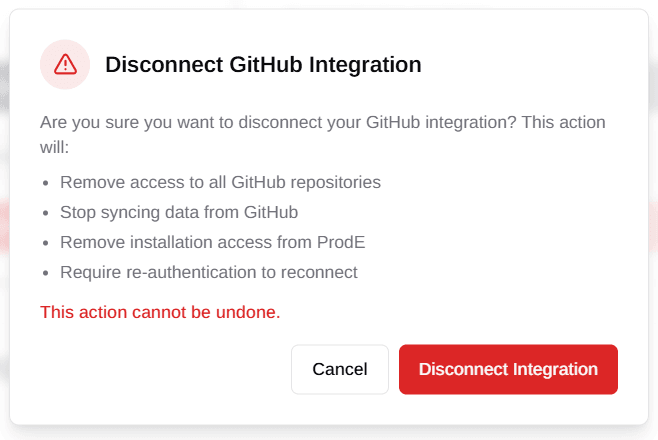
When you disconnect GitHub:
- All GitHub repository data is permanently deleted.
- The knowledge layers built from it are removed.
- Reconnecting requires authorizing GitHub again, by reinstalling the app or providing a new token.
Disconnecting a single organization
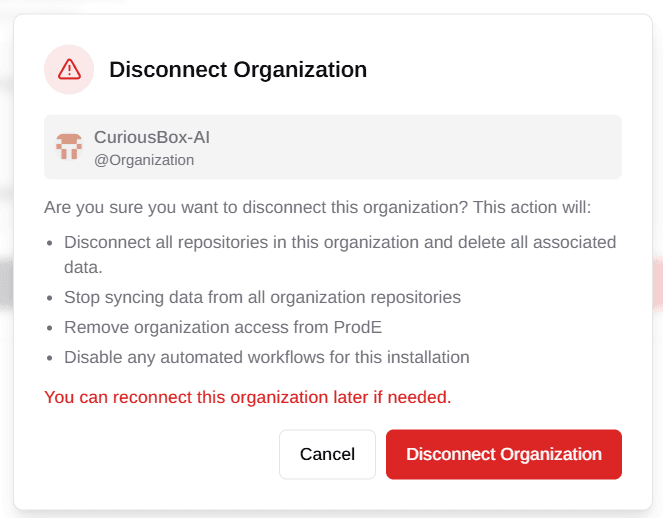
Disconnecting an organization permanently deletes all of that organization's repository data and knowledge layers.
When you disconnect one organization:
- All repository data from that organization is permanently deleted.
- Its knowledge layers are removed.
- Other connected organizations are unaffected.
FAQ
Organization already connected
When you connect GitHub and see a Configure option next to an organization instead of a connect option, that organization is already linked to another ProdE team through the GitHub App.
To move it to your current team:
- Uninstall the ProdE GitHub App from the organization.
- Reinstall it while connected to your new team.
This transfers access from the previous team to your current one. The previous team loses access to that organization once the switch is complete.